Mastering Regular Expressions - tool that everyone should know
When I first started as a junior engineer on an MCAL (Microcontroller Abstraction Layer) development team, my responsibilities mainly involved testing and maintaining existing test scripts and environment structures. I vividly remember one specific instance where we updated a module’s Parameter Definition File (PDF). This change required us to update the entire test environment’s Configuration Data Files (CDFs)—the configured output .arxml files used in AUTOSAR MCAL module.
We had introduced a new DEM (Diagnostic Event Manager) error into the parameter definition of CAN module. Consequently, every CDF in the CAN module’s test environment needed an additional DEM reference added under the DemEventParameterRefs container as below:
<ECUC-REFERENCE-VALUE>
    <DEFINITION-REF DEST="ECUC-SYMBOLIC-NAME-REFERENCE-DEF">/VENDOR/EcucDefs_Can/Can/CanDemEventParameterRefs/CAN_E_TX_HISTORY_OVERFLOW</DEFINITION-REF>
    <VALUE-REF DEST="ECUC-CONTAINER-VALUE">/ActiveEcuC/Dem/DemConfigSet/CAN_E_TX_HISTORY_OVERFLOW</VALUE-REF>
</ECUC-REFERENCE-VALUE>
At the time, my workflow was to load the updated PDF into a configuration tool, manually import each test environment CDF, re-save them, and export them again so they would include the new reference parameters.
My initial plan was to go through all of the CDFs—several hundred files—one by one. (Don’t ask me why I didn’t ask a senior engineer for guidance, my team culture back then was “figure it out yourself first, and only ask if you are truly stuck.”)
After agonizing through a dozen files, I realized this was not a sustainable way to work. I compared a new CDF against an old one and realized I could simply insert the text block into a specific position programmatically.
I whipped up a Bash script after a few searches on Stack Overflow. It wasn’t pretty, but it got the job done:
#!/usr/bin/bash

for filename in ./*.arxml; do
  echo "File name: $filename"
  # Find the line number of the anchor tag
  linef=`sed -n '/<SHORT-NAME>CanDemEventParameterRefs/=' $filename`
  # Offset by 3 lines to hit the correct insertion point
  linef=`expr $linef + 3`

  sed -i ''$linef' i\
                <ECUC-REFERENCE-VALUE>\
                  <DEFINITION-REF DEST="ECUC-SYMBOLIC-NAME-REFERENCE-DEF">/VENDOR/EcucDefs_Can/Can/CanDemEventParameterRefs/CAN_E_TX_HISTORY_OVERFLOW</DEFINITION-REF>\
                  <VALUE-REF DEST="ECUC-CONTAINER-VALUE">/ActiveEcuC/Dem/DemConfigSet/CAN_E_TX_HISTORY_OVERFLOW</VALUE-REF>\
                </ECUC-REFERENCE-VALUE>' $filename
done
Looking back, I realize how much easier this would have been if I had known Regular Expressions (Regex). That entire scripting headache could have been resolved with a single “Search and Replace” in Notepad++ using a pattern like this:
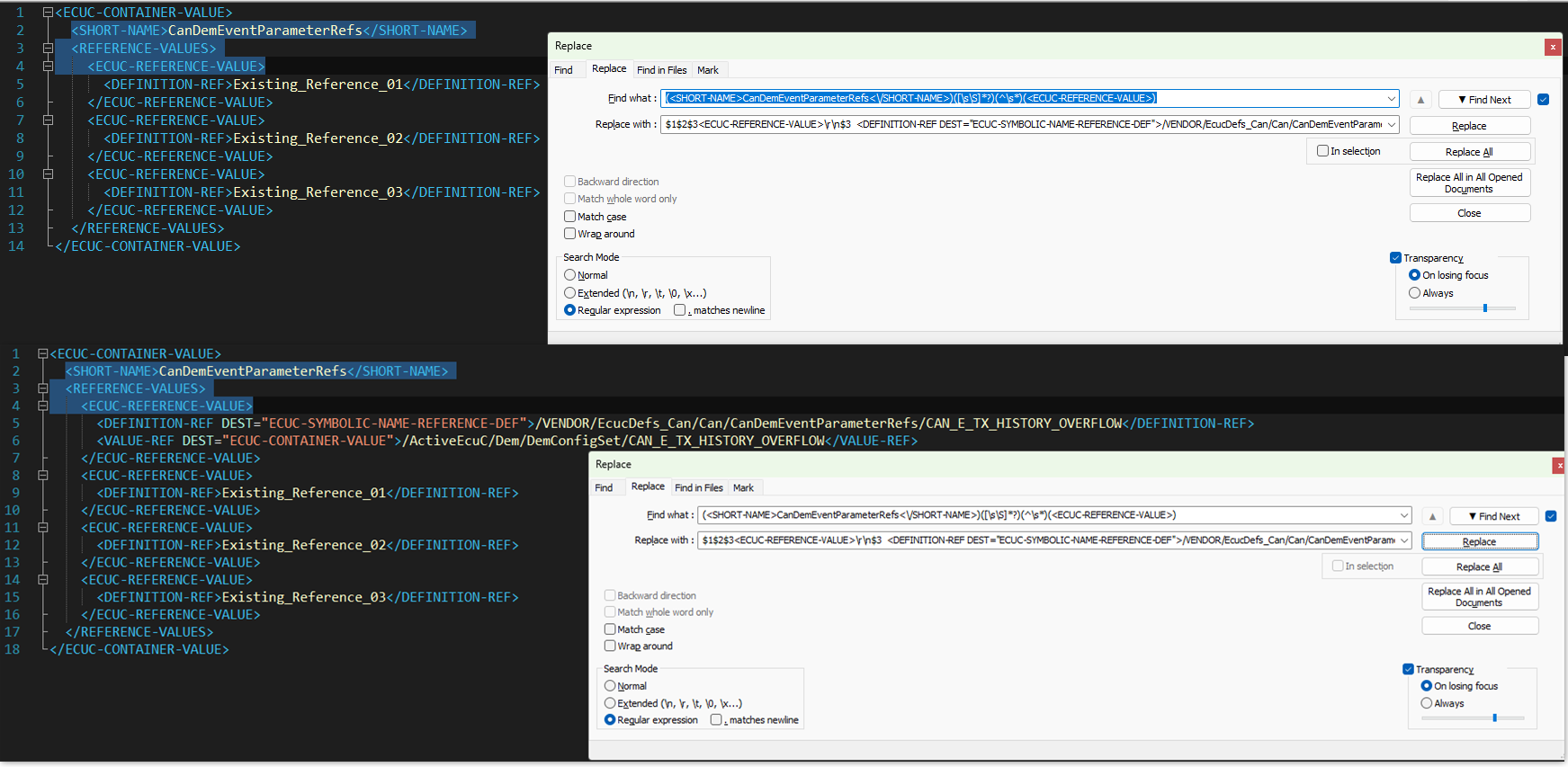
Find:
(<SHORT-NAME>CanDemEventParameterRefs<\/SHORT-NAME>)([\s\S]*?)(^\s*)(<ECUC-REFERENCE-VALUE>)Replace:
$1$2$3<ECUC-REFERENCE-VALUE>\r\n$3 <DEFINITION-REF DEST="ECUC-SYMBOLIC-NAME-REFERENCE-DEF">/VENDOR/EcucDefs_Can/Can/CanDemEventParameterRefs/CAN_E_TX_HISTORY_OVERFLOW</DEFINITION-REF>\r\n$3 <VALUE-REF DEST="ECUC-CONTAINER-VALUE">/ActiveEcuC/Dem/DemConfigSet/CAN_E_TX_HISTORY_OVERFLOW</VALUE-REF>\r\n$3</ECUC-REFERENCE-VALUE>\r\n$3$4After a few more encounters like this, I eventually stumbled upon regular expression and read some more advanced concept about it. Since then, Regex has become one of the most valuable skills I picked up in my early career.
To someone who doesn’t know about regex yet, above Find and Replace regex looks like random gibberish. But once you understand the logic behind it, it becomes a superpower for manipulating text, cleaning data, and automating the mundane. In this blog, we will explore the building blocks of Regex, from basic syntax for daily tasks to advanced techniques for some unique use cases.
I. What is Regex?
At its core, a Regular Expression is a specialized string that describes a search pattern. Think of “Find and Replace” but on steroids. While a standard search looks for exact matches, regex looks for patterns such as “any sequence of 5 digits followed by 1 capital letter.”
II. Why Bother Learning It?
- Efficiency: Tasks that take hours of manual editing and inspection can be done in seconds.
- Validation: It’s the standard way to ensure user input (filepath, parameter, etc..) is formatted correctly.
- Data Scraping: Extracting specific information from massive logs or text files becomes extremely easy.
- Universal: Almost every programming language (Python, C++, C#, Matlab) and text editor (VS Code, Vim, Sublime) have the library or function to support it.
III. The Building Blocks & Basic Syntax
First, you need to know the building block that form the foundation of any regex:
III.1. Characters
Regular expressions consist of two types of characters: Metacharacters, which have special meanings (e.g. ., \), and Literals (normal text), which match themselves.
| Metachacters | Name | Description |
|---|---|---|
. | Wildcard or Dot | Matches any single character except a newline Example: c.t matches cat, cut, c-t, and c9t. |
[ca] [a-z] [^12] | Character classes | []: matches any characters inside [] Example: gr[ea]y match either gray or grey [-]: matches any characters in range between char before dash - and after it Example: <H[1-3]> matches <H1>, <H2> or <H3> [^]: matches any character that isn’t listed after caret ^ in [](negated) Example: [^1-6] matches any characters that not from 1 to 6 NOTE: metacharacters inside [] is interpreted literally as it is(except for the dash - and ^ if they are used in position as above) .e.g [(a.] look for a single character (, a or . ; [ab^-] look for a single character a, b, ^ or - [0123456789abcdefABCDEF] can be written as [0-9a-fA-F] |
\s \S \w \W \d \D | Shorthand classes | \s / \S: matches whitespace (space, tab, newline) / Non-whitespace \w / \W: matches “word” characters (A-Z, 0-9, _) / Non-word \d / \D: matches any digit (0-9) / Non-digit |
\b \B | Boundary | \b: matches the position between a word character and a non-word character(word boundary) \B: Non-word boundary |
\t \r \n | Non printable | \t: Tab. \r: Carriage return. \n: Newline. |
a afc s | Plain text character | Matches the literal string which is specified by character sequence |
() | Capturing group | Groups characters together to act as a single unit and “remembers” the match for later use (back-referencing). Example: (abc) matches “abc” and stores it in group 1. |
\ | Escape | If you want to match a meta characters like ., $, [, ], (, ) or \ as literal characters, you put a backslash before it. Example: \$ matches a literal $, and \. matches a literal ., and \(\) matches literal () Another special usage is to back reference, as we can use \{index} to reference the matches in () group Example: regex (first|1st).*(<H[1-3]>)\2 then the \2 is refer to 2nd matches unit <H[1-3]> in the current regex |
| | Alternation | Combine multiple expressions into a single expression that matches any of the individual ones Example: (first|First|1st) matches first or First or 1st ; gr(a|e)y match either gray or grey |
III.2. Quantifier
Quantifiers specify how many times the preceding character, group, or character class should occur.
| Symbol | Repetition | Description |
|---|---|---|
+ | 1 to n | At least once. Matches one or more of the preceding element. Example: \d+ matches 1, 23, 456 and so on |
* | 0 to n | Zero or more. Matches the preceding element any number of times, or not at all. Example: \t* matches zero or many tabs |
{1} {2,} {0,3} {1,5} | min to max | Matches between n and m repetitions. {n}: Exactly n times. {n,}: n or more times. Example: [a-z]{1,4} matches a, ab, abc, or abcd |
? | 0 or 1 | Matches the preceding element zero or one time. Example: colou?r matches color and colour |
NOTE: ? is consider as lazy matching and other quantifier(+ *) are greedy match. Refer to advanced section for it usage.
III.3. Anchor
Anchors do not match actual characters. Instead, they match positions within the text.
| Symbol | Name | Description |
|---|---|---|
^ | Caret | Matches the start of the line or string. Example: ^Start matches “Start” only at the beginning. NOTE: ^ consider as negated if placed at the beginning of [] |
$ | Dollar | Matches the end of the line or string. Example: End$ matches “End” only at the very end. NOTE: $ act similar as \ in case of referencing i.e. refer to unit group of the matched regex $1, $2 |
\b | Word Boundary | (As mentioned above) Matches the start or end of a word. Example: \bcan\b matches the word “can” but not “canvas” or “scan”. |
III.4. Now combine all of them
The table above covers the core syntax, but the magic comedown on how you combine these pieces to solve specific problems. Let’s look at a possible scenario in actual project.
Imagine you are analyzing a UART log from a Gateway ECU. The log spans several days of operation, and you need to find all security-related logs (SEC:) from February 9, 2026, specifically where a request was made to ECU 0x1121:
2026-02-09 01:35:08.883420 SYS:Started Security Auditing Service.
2026-02-09 01:35:08.931006 SYS:Started Measure the time from kernel boot to SGA-READY.
2026-02-09 01:35:08.995003 SYS:Started SOME/IP Gateway.
2026-02-09 01:35:09.011094 SEC:Started UDS firewall.
2026-02-09 01:35:10.044021 SYS:Started UDS message forwarding.
2026-02-09 01:35:12.000051 SEC:Request security access level 0x11 to ECU 0x1121.
2026-02-09 01:35:12.094231 SEC:Request security access level 0x17 to ECU 0x1100.
2026-02-09 01:35:15.052119 SEC:Request diagnostic protection role Production 0x31 to ECU 0x1121.
2026-02-09 01:35:30.954138 SYS:Started LIN Network Service.
2026-02-09 01:35:30.986575 SYS:Started LIN Heartbeat Service.
2026-02-09 01:35:31.086513 SYS:Started gPTP Bridge is ready.
....
2026-02-13 01:35:31.086513 SEC:Request security access level 0x11 to ECU 0x1121.
Solution:
To match this specific pattern, we can build the following expression:
^2026-02-09.*SEC:.*ECU 0x1121.*$Breaking Down Logic:
^2026-02-09: We use the Caret (Anchor) to ensure the line starts exactly with our target date..*: The Wildcard and Greedy Quantifier combo tells the engine to skip everything until find the follow-up pattern in the regex”SEC:: A Literal match to filter only the security module entries.ECU 0x1121: A literal match for our target logical address.$: The Dollar (Anchor) ensures there is no extra text after our match, confirming we’ve reached the end of the line.
⟹ as we can see, there are plenty number of small building block characters, and from these we can arrive to infinity number of combined expression, which can help solve a single pattern matching problem.
IV. The Advanced Usage
Once you have mastered the basic building blocks, you will eventually run into complex problems—like parsing nested XML or extracting data from messy logs—where simple matching isn’t enough. This is where the advanced logic of the regex engine comes into play.
IV.1. Groups and Capturing ()
Parentheses serve 2 purposes: they group parts of a pattern together and they capture the text that matches that group into a “memory slot”, which can be referenced directly in current regex pattern or later(i.e. post matched/replaced operation)
- Grouping:
(abc)+matches “abc”, “abcabc”, “abcabcabc”,… <- adjacentabcand repeated more than one - Capturing: If you have
(\d{2})-(\d{2})-(\d{4})to match the dd-mm-yyyy, the regex engine remembers the day in Group 1, month in Group 2, and year in Group 3. You can then “recall” these in your code or replacement string using$1or$2or$3or backreference to them in the same searching regex as\1,\2or\3.
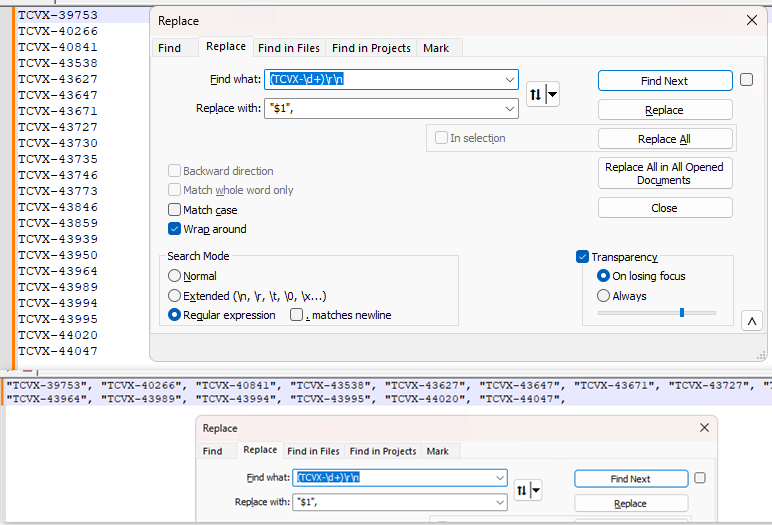
Above image is a use case that I encounter daily and I utilize group capturing regex to do quick text modification where:
- the input text is “TCVX-{index}” string on each line (few hundred lines)
- and I need to create a python array style string from this text, so I can put it into a simple python script
search: (TCVX-\d+)\r\n -> replace "$1", and I have the desired output.
⟹ same operation can be done during programming, with group capturing you can get out data of interest(.i.e group in the regex) from regex matched result.
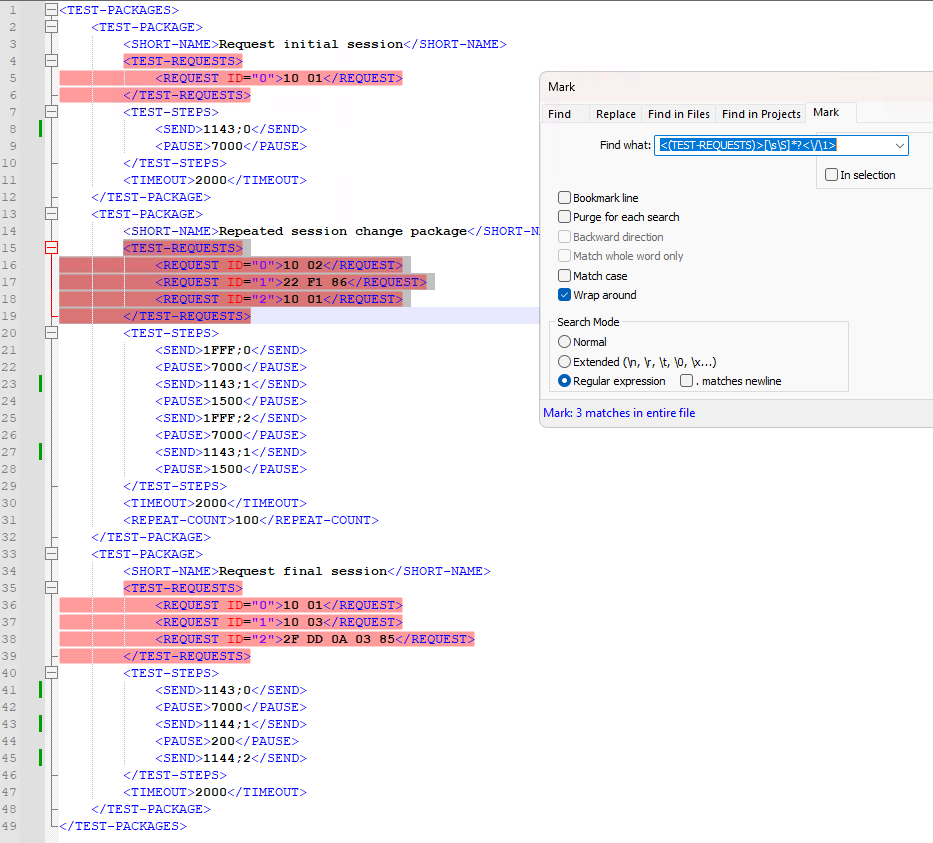
Above image is use cases where I find all the <TEST-REQUESTS> container in a xml file by using:
<(TEST-REQUESTS)>[\s\S]*?<\/\1>: \1 is backreference to group 1 the literal string TEST-REQUESTS
Another common use case is to check for duplicated word by \b(\w+)\s+\1\b.
IV.2. Greedy vs Lazy Matching
In above regex example you can see a weird part in the regex [\s\S]*?.
[\s\S]: just a quick way to match any character, including newlines/line breaks, because I want to get everything between xml TAG that spread multiple line*?: why optional quantifier?after a quantifier*. In this case, it calledlazy quantifier
Greedy quantifier: *, +, {num,num} i.e. regex engine will try to extend the matching of regex unit before it as much as possible.
-> Lazy quantifiers: *?, +?, {num,num}? i.e. regex engine stop at the first possible opportunity, so in above example regex engine will stop as soon as it hit the first </TEST-REQUESTS> tag, even though that literal string is matched by [\s\S]*
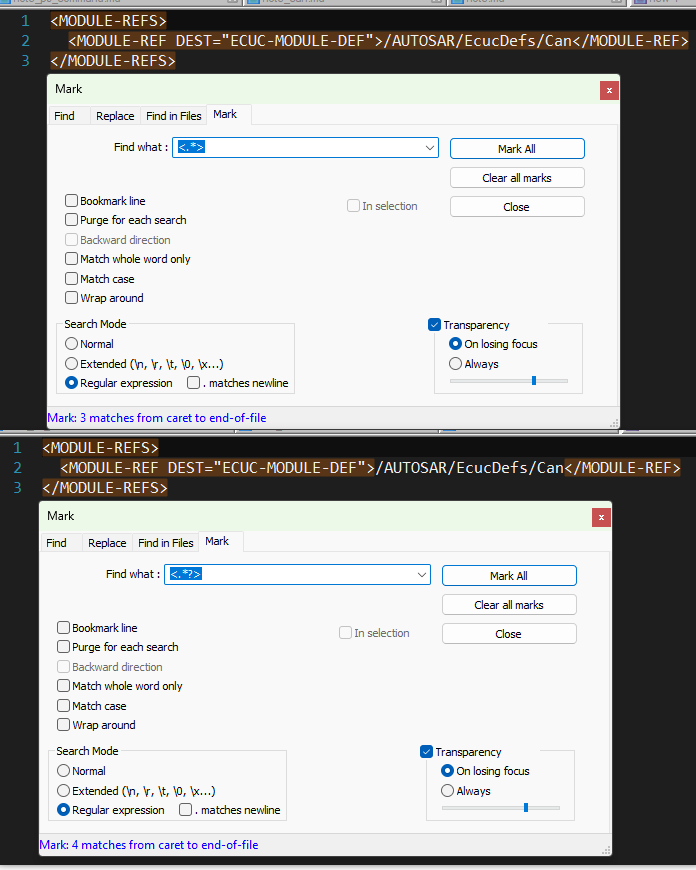
Example, in 2nd regex <.*?>, adding the lazy quantifier make the regex match a single xml tag instead of going for the whole line as in the 1st one.
V. Final Thought
You are not required to be an expert in regular expression and create most efficient regex for every issue. A basic understanding of how regex works and when to apply it is already enough to dramatically simplify your daily work.
A very good site where you can learn and test your regex with detailed, real‑time explanations: regex101.com.
And if you want to optimize your regex writing and explore more advanced concept, you can refer to this book Mastering Regular Expressions by Jeffrey E. F. Friedl.